

For Account owners who want to monitor sign-ins and respond if they see activity they don't recognize.
Security and devices
Turn on new-device login alerts, review recognized devices and forget them, and sign out of all devices at once.
Overview
The Security settings page helps you keep an eye on where your account is signed in. You can enable new-device login alerts, review a list of recognized devices and forget any of them, and sign out of all devices if you ever suspect a sign-in you don't recognize.
New-device alerts are informational only — they tell you when a new device or browser signs in, but they never block a sign-in. Because ArtSpace sign-in goes through Google, your strongest protection is your Google account security.
When to use
- You want an email and in-app heads-up whenever a new device signs in.
- You want to review which devices have accessed your account.
- You see a sign-in you don't recognize and want to lock things down.
Where to find it
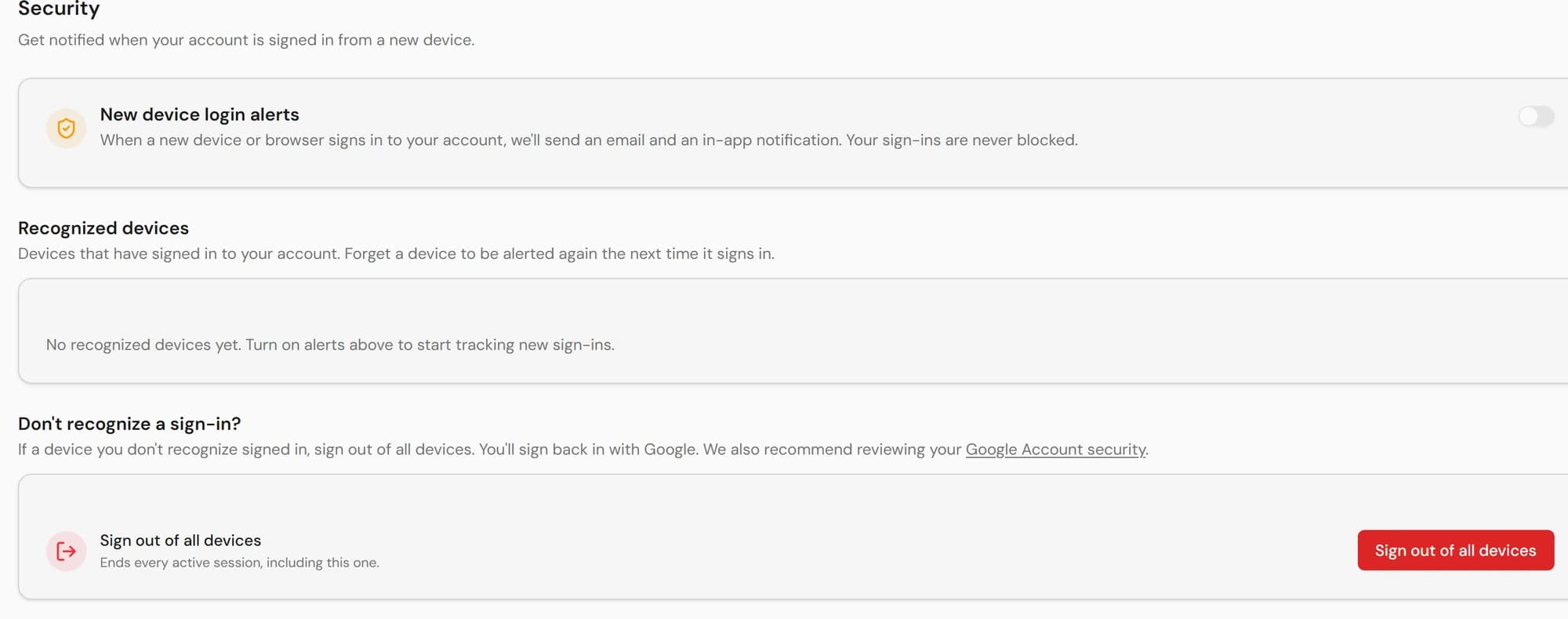
Open Settings from your profile and go to the Security section. It has three parts: New device login alerts, Recognized devices, and a sign-out action under Don't recognize a sign-in?.
New-device login alerts
When this is on, ArtSpace sends an email and an in-app notification whenever a new device or browser signs in to your account. Sign-ins are never blocked.
- 1Toggle New device login alerts on.
- 2Under Send alerts to, choose which verified email should receive the alerts.
- 3Your selection saves automatically.
Alerts can only be delivered to a verified email. If the selector is empty, verify an address first in Account emails and verification. With no recognized devices yet, turning alerts on starts tracking your future sign-ins.
Recognized devices
This list shows the devices that have signed in to your account, each labeled by browser and operating system, with its last-seen time and the device you're currently using marked This device.
- 1Review each entry and confirm you recognize it.
- 2To remove one, click Forget next to it and confirm.
- 3After forgetting a device, you'll get a fresh new-device alert the next time it signs in.
Forgetting a device does not sign it out — it simply makes ArtSpace treat its next sign-in as new, so you'll be alerted again. To actually end sessions, use Sign out of all devices below.
Sign out of all devices
If you don't recognize a recent sign-in, the safest response is to end every active session at once. You'll then sign back in with Google.
- 1Under Don't recognize a sign-in?, click Sign out of all devices.
- 2Confirm in the dialog. This ends every active session, including the one you're using right now.
- 3Sign back in with Google when you're ready.
Sign out of all devices immediately if you notice a device, location, or browser you don't recognize, or if you think someone else may have access to your account. It ends every session, including this one, so you'll be signed out here too. As an extra step, also review your Google Account security settings.
Notes
- The new-device security alert is one of the Required notices — it is always sent and cannot be turned into a silent event, though you choose which verified email receives it.
- Last-seen times and device labels are based on the browser and system reported at sign-in.