

For Account owners who want to manage which email addresses are on their account and which one is shown publicly.
Account emails and verification
Add up to five email addresses, verify ownership with a magic link, choose a public email, and remove secondary addresses.
Overview
Your account can hold up to five email addresses. Each address must be verified by clicking a link sent to that inbox before it can be used. Verified addresses can receive account alerts and can be selected as your public email — the address shown on your public profile. Your primary email (the one tied to your Google sign-in) is always present and cannot be removed.
Verifying an extra email here proves you own that inbox. It does not change how you sign in — ArtSpace sign-in is always through Google.
When to use
- You want a different address shown publicly than the one you sign in with.
- You want account and security alerts delivered to a specific inbox.
- You want to add a work or shared inbox alongside your personal one.
- You need to remove an address you no longer use.
Before you begin
- You can have at most 5 emails total, including your primary address.
- You will need access to each inbox you add, to click its verification link.
- Only verified emails can be shown publicly or receive alerts.
Where to manage emails
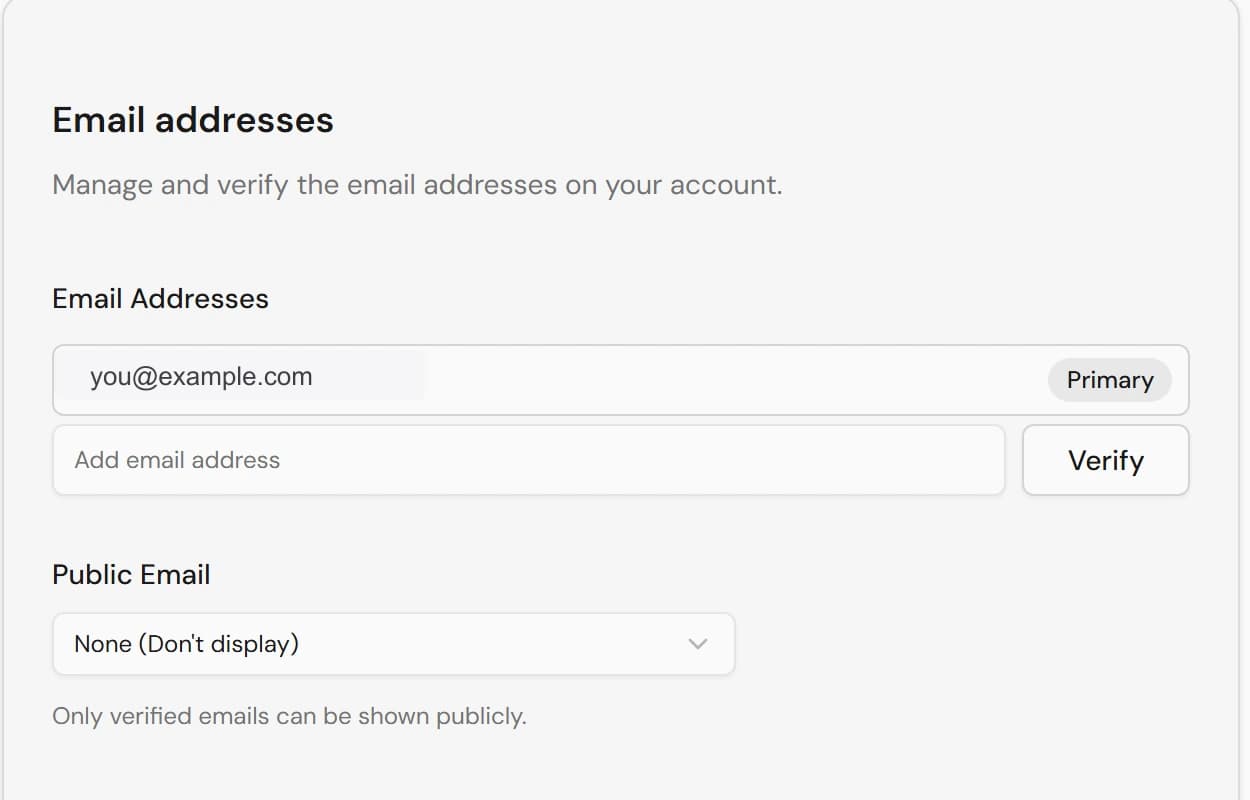
Open Settings from your profile and find the Email addresses card (in the Email & Links area). It lists every address on your account with a status badge: Primary, Verified, or Unverified.
Add and verify an email
- 1In the Add email address field, type the new address and click Verify (or press Enter).
- 2ArtSpace sends a confirmation link to that inbox and shows a note that a link was sent.
- 3Open the email and click the verification link. The link expires in 60 minutes.
- 4Return to the settings page — it updates automatically once you click the link, and the address now shows a green Verified badge.
You do not need to keep the settings tab focused. The page polls for the result, so clicking the link in another tab or on your phone will still flip the address to Verified here.
If a verification link expires before you use it, just click Verify again on that address to send a fresh link. If an address recently bounced, ArtSpace will ask you to check for typos or use a different email. There is also a short cooldown between sends and a daily limit.
Choose your public email
The Public email selector decides which address appears on your public profile.
- 1In the Public email dropdown, pick a verified address to display, or choose None (Don't display) to hide your email entirely.
- 2Save the change with the Save links button in the Public links card (the public email is saved together with your public links).
Only verified emails appear in the dropdown. If you want to show a new address publicly, verify it first.
Remove a secondary email
- 1Find the address you want to remove in the list.
- 2Click the trash icon next to it.
- 3If that address was set as your public email, your public email automatically resets to None.
Your primary email cannot be removed — it has no delete control. Only secondary addresses can be deleted.
Notes
- An email that is already verified on a different account cannot be added to yours.
- The same verification-by-link flow is reused elsewhere — for example, the contact email on a verification badge request and the alert email for security and devices.
- Organizations manage their own emails the same way, editable by Owners and Admins.