

For Creators who want a quick, custom thumbnail without a design tool.
Generate an AI thumbnail
Create a cover image for your Space from a text prompt, with an optional reference image.
Overview
Don't have a cover image ready? You can generate one with AI from a short text description, and optionally guide it with a reference image. The result becomes your Space's thumbnail just like an uploaded image.
When to use
- You need a polished cover quickly and don't have a designed image.
- You want to try a few visual directions before committing.
- You have a reference look in mind and want the result to echo it.
The AI thumbnail generator may be unavailable if it has been turned off platform-wide. When that happens, the Generate with AI button is disabled — just upload an image instead.
Where to find it
The generator is available wherever you set a thumbnail: the upload step when creating a Space, and Edit details later. Look for the Generate with AI button next to the thumbnail area.
Generate an image
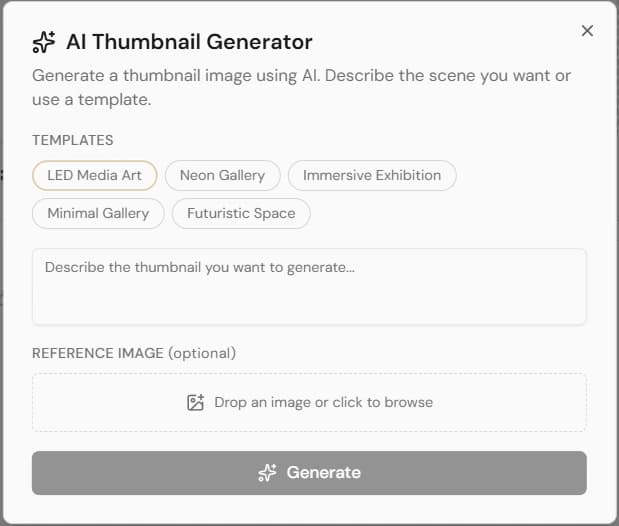
- 1Select Generate with AI to open the generator.
- 2Type a prompt describing the image you want — subject, mood, style, and colors all help.
- 3Optionally add a reference image to steer the result toward a particular look.
- 4Generate, then review the result.
- 5If it's not quite right, adjust the prompt and regenerate.
- 6When you're happy, apply it — it becomes your Space's thumbnail.
Daily limit
To keep things fair, each account has a daily limit on AI image generations (20 per day by default). When you reach it, generation pauses until the limit resets — you can still upload your own image any time.
Notes
- A generated thumbnail behaves exactly like an uploaded one — you can replace it later via Edit details.
- Clear, specific prompts (subject, lighting, style) tend to give the best results.